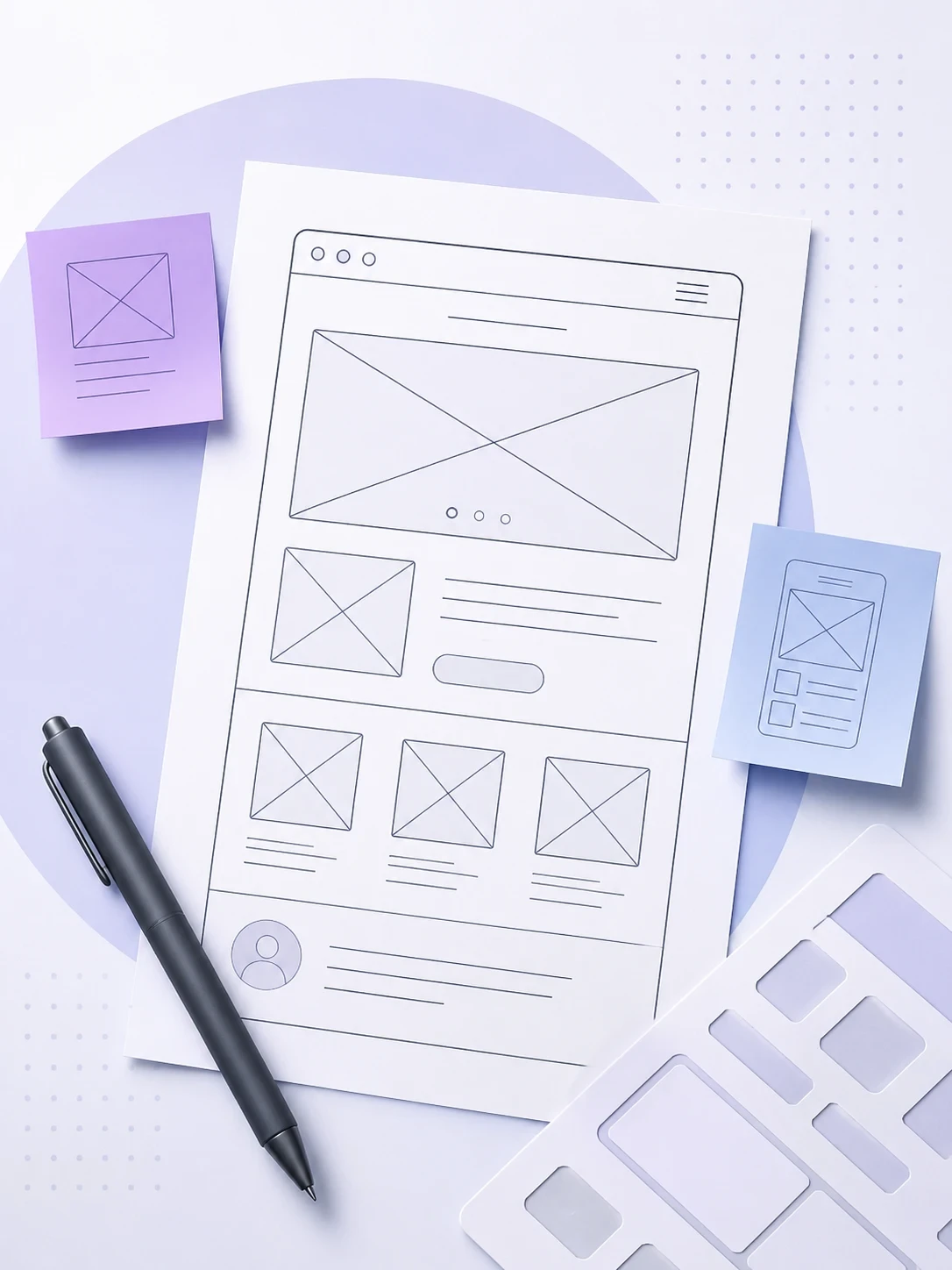

A wireframe is the skeleton of a design. It is a structural blueprint of a digital interface of a website or app that layouts your ideas. It shows where design elements should be placed, not how they look. No colors. No fonts. No final imagery.
Wireframe is a basic layout of an app or website. That shows the design structure and placement of the content. It also displays the functionality of a website, app, or digital product. It assists you in arranging the user interface before you shift to visual design.
You can imagine a wireframe as the framework of a house. When you build a house, you need walls, rooms, and pathways. Then you will choose paint, furniture, or decor. Wireframe is the walls, room, and pathways here that give you an outframe of the house.
Wireframes matter in UI design because they help designers organize design elements and plan user journeys. With wireframes, designers can spot usability issues early.
In this guide, we will walk you through what a wireframe is, how it fits into UI design, the different types of wireframes, when to use them, and how to create effective wireframes that support better user experiences.
What Is a Wireframe?
Wireframes are simple and basic visual layouts of a digital interface. You can outline them with simple lines, shapes, and grayscale placeholders. It gives you the idea about where you can effectively place content, navigation, and functional elements on a screen.
You can simply consider it as a blueprint. Just as architects create blueprints before construction begins. That's how designers create wireframes before building the final interface.
The primary focus of a wireframe is the structure. Not appearance.
Colors, fonts and typography, brand identity, final images or illustrations, and any visual polish elements and decisions come later in a design process. A wireframe is only about the basic structure of a design.
What Is a Wireframe for UI Design?
UI design focuses on the visual appearance of a product. UI determines what elements users see and interact with on screen.
Wireframes support UI designers. They answer the structural questions first. That way, when a UI designer starts working, they already know:
Where the navigation sits
How many columns the layout uses
Where the main button lives
What components appear on each screen
This saves a lot of reworks. The designer focuses on how things look. Not where they go.
We often mention UX and UI together. UX is about how a product works, feels, and overall user experience. UI is about how it looks. Wireframes are beginning point for the UI UX design process. They are the output of UX thinking and the input for UI work.
Common Elements of a Wireframe
Information Architecture
Information architecture is the structure behind the wireframe. It defines:
What content is most important
How users move through the product
What sequence of screens they follow
Content Placeholders
Wireframes use simple shapes to represent real content:
Gray lines or "lorem ipsum" for text
Boxes with an "X" through them for images
Rectangles for cards and content sections
Interactive Components
These show what the interface will do:
Buttons and calls-to-action
Forms and input fields
Menus and dropdowns
Search bars
Tabs, breadcrumbs, and pagination
3 Types of Wireframe Design
Wireframes come in three levels. Designers call this "fidelity." Fidelity means how much detail a wireframe has.
Low-Fidelity Wireframes
Focus: Basic structure and user flow
Appearance: Hand-drawn sketches, rough layouts, or simple boxes
Use: Early brainstorming and concept exploration
Low-fidelity wireframes help teams think through layout ideas quickly. At this stage, the goal is not precision. It is understanding how content and functionality must be arranged.
Mid-Fidelity Wireframes
Focus: Layout refinement and content hierarchy
Appearance: Cleaner digital layouts with clearer spacing and structure
Use: Reviewing page organization and functionality
Mid-fidelity wireframes make it easier to evaluate navigation, content placement, and screen relationships before visual design begins.
High-Fidelity Wireframes
Focus: Detailed interface planning
Appearance: Precise layouts with realistic content and UI elements
Use: Preparing for UI design, stakeholder reviews, and prototyping
These wireframes closely represent the final interface structure while still focusing on functionality rather than visual styling.
What Elements Are Included in a UI Wireframe?
Header
The header sits at the top of every screen. A wireframe shows:
Where the logo goes
What the main navigation links are
Where secondary actions sit (search, account, cart)
Navigation
Navigation can appear in different places depending on the product:
Sidebar menus (common in dashboards and SaaS tools)
Bottom tab bars (standard in mobile apps)
Breadcrumbs (useful in e-commerce and content sites)
Hamburger menus (used for collapsed mobile navigation)
Content Sections
This is the main area of the screen. Wireframes define:
Hero or banner areas
Product grids or content cards
Feature sections
Text and information blocks
Buttons and Calls-to-Action
Every screen has one main action the user should take. Wireframes show:
Primary CTAs like "Buy Now," "Sign Up," or "Get Started"
Secondary actions like "Learn More" or "View Details"
Where each button lives on the screen
Button position is a structural decision. If a CTA gets lost at the bottom of a long page, that is a layout problem. Not a design problem.
Forms and Input Fields
Wireframes define every form field by type, label, and position:
Contact forms
Login and registration flows
Search and filter inputs
Checkout forms
Footer
The footer holds secondary content and trust signals:
Links to policy pages, about pages, and sitemap
Social media links
Contact details
Copyright and legal text
When Should You Use a Wireframe?
Designing a New Website
A new website has no structure. You have to start the design process with a wireframe. The wireframes help you plan the page hierarchy and navigation. You can plan content layout before you design anything.
Creating a Mobile App
Screen space is limited on mobile. In this small space, you must place every element. Wireframes help you decide what stays. What gets hidden. What needs its own screen.
Planning a Dashboard
Dashboards are complex. You must place data, filters, charts, and navigation in a space. A wireframe helps you to layout priorities before any visual work starts.
Redesigning an Existing Product
Redesigns carry old assumptions. You may think you know what needs to change. Wireframes turn those assumptions into visible decisions. That way, you can redesign an existing product.
Building Complex User Flows
Onboarding flows, checkout flows, and account setup flows involve many screens. You can map each screen and the transitions between them with wireframes. If you miss any step, you can easily find it on the wireframe.
When You May Not Need a Wireframe
Wireframes are useful for some design project. You may not need them for every project.
Minor Design Updates
You can make small changes like spacing, content, or visual styling without creating new wireframes.
Small Content Changes
Updating copy, images, or existing sections usually does not impact the overall interface structure.
Existing Design Systems
Sometimes, you may use established layouts and reusable components. In that case, you can often move directly into UI design.
Very Simple Landing Pages
If you create a single-page layout with a strong goal, then you may not require a dedicated wireframing phase.
The key question is simple: if the structure is already clear and unlikely to change, wireframing may add little value to the process. You should use wireframe for UI design when the design project is complex and massive.
How to Create a Wireframe for UI Design: 6 Steps
Creating an effective wireframe starts with understanding the problem before designing the solution.
Here is a simple 6-steps to create a wireframe for UI design.
Step 1: Understand User Goals
Start by answering two questions:
What is the user trying to do?
What does the business need the user to do?
A checkout page has different answers than a dashboard or a blog. Every screen should support a clear purpose. Build your wireframe around real goals.
Step 2: Map User Flows
Draw the sequence of screens for each key action. This defines the structure before you design individual screens.
Key flows to map first:
Sign-up and onboarding
The main task users come to do
Error states and recovery paths
Step 3: Organize Content
Before you place anything, rank your content by importance:
What does the user need to see first?
What action do you want them to take?
What information helps them decide?
Group related content together. Show hierarchy through placement and size. Not color or imagery.
Step 4: Sketch the Layout
Start rough. The paper works fine. Block out the major regions:
Header
Main content area
Sidebar (if needed)
Footer
Focus on structure, not aesthetics. Do not try to finalize anything yet. Just commit to a rough layout you can react to.
Step 5: Add Core Components
Now place the essential interface elements inside your layout:
Navigation bars and menus
Content placeholders
Buttons and CTAs
Forms, inputs, and search fields
Place them where users expect to find them. Label everything. A wireframe without labels is hard for anyone else to read.
Step 6: Review and Refine
Share the wireframe with at least one other person. Ask:
Is the main action clear?
Is anything missing?
Does the flow make sense?
Gather feedback and make improvements. Expect more than one round. Wireframing works best as an iterative process, not a one-time task.
Wireframe vs Mockup vs Prototype
These three terms get mixed up constantly. They are not the same thing.
What Is a Wireframe?
A structural layout with no visual design. Just the basic layout of an application, website, or digital product design.
What Is a Mockup?
A mockup is a full-size model of a product. It looks like the finished product, but you cannot click on it. Mockups have colors, fonts, and images.
What Is a Prototype?
Prototype is an interactive version of the product. Users can click, tap, and navigate as if it were real. You can use prototypes for usability testing.
Key Differences
Feature | Wireframe | Mockup | Prototype |
Purpose | Plan structure and layout | Show the visual design | Simulate real interaction |
Visual Detail | Low (grayscale, basic shapes) | High (colors, fonts, images) | High (mirrors the final design) |
Interactivity | None | None | Yes (clickable and navigable) |
Stage in Process | Early (before visual design) | Mid (after wireframing) | Late (before development) |
Primary Audience | Designers, PMs, developers | Stakeholders, clients | Testers, real users |
Wireframe Examples for Different Projects
Website Wireframe
A typical website wireframe includes:
Header with logo and primary navigation
Hero section with a headline placeholder and CTA
Feature or service sections in a two or three-column layout
A testimonial or social proof section
Footer with links and contact details
Mobile App Wireframe
Mobile wireframes focus on:
Bottom navigation bar or tab structure
Full-width content cards
Thumb-friendly CTA placement
Modals and slide-up sheets for secondary actions
Ecommerce Wireframe
Ecommerce needs multiple connected screens:
Product listing page with grid, filters, and sorting
Product detail page with images, description, and add-to-cart
Cart and checkout flow with a clear progress indicator
SaaS Dashboard Wireframe
Dashboards are data-heavy. Wireframes for dashboards define:
Sidebar navigation with a clear section hierarchy
Top-level metric cards
Chart and table regions
Filter and date-range controls
Landing Page Wireframe
Landing pages have one job: get the conversion. The wireframe shows:
A strong above-the-fold section with the main CTA
Minimal or no navigation
Benefit-focused content blocks
Social proof and trust signals
The CTA repeated at the bottom
Tips to Nail a Great Wireframe
Keep It Simple
Do not add details too early in a wireframe. A wireframe full of clutter is hard to review and harder to change. Boxes and labels are enough.
Focus on User Goals
Every element should serve a user goal or a business goal. If you cannot explain why something is on the screen, remove it.
Prioritize Content Hierarchy
Position drives attention. Put the most important content where the user looks first. Use size and placement to show hierarchy. Not colors.
Design for Real User Flows
Do not wireframe screens alone. Know what comes before each screen and what comes after. Your wireframes should tell a story the users can follow.
Gather Feedback Early
Share your wireframes before they feel ready. Early feedback is cheap. Late feedback is expensive. Wireframe is a tool for conversation.
Stay Consistent
Use the same shapes and symbols throughout. If a filled rectangle means a button on one screen, it should mean a button on every screen. Inconsistency confuses reviewers.
Common Wireframe Mistakes to Avoid
Wireframes are supposed to simplify the design process. So, you must avoid some common mistakes to make your design process smooth. That’s how you can get the best design output later.
Adding Visual Design Too Early
Ignoring User Flow
Overcomplicating Layouts
Skipping Content Planning
Designing Without Clear Goals
Not Testing Assumptions
Final Thoughts
A wireframe is where a product gets its shape.
Not the visual shape. The structural one. It is the first time a team can point at something and say, "this is how it works.
Strong products start with strong wireframes. Not because it is a rule. If you get the structure right first, then the design process will become easier later.
If you are building something new. Redesigning something old. Mapping a complex flow. Then start with a wireframe. Get the structure right before the visual design starts.
Frequently Asked Questions
What is the benefit of using wireframes?
The benefit of using wireframes is that they catch structural problems early. Before development begins. Fixing a usability issue during the design process costs you far less than fixing it after launching. Wireframes keep teams aligned on structure, reduce revision cycles, and give everyone a clear reference before visual design starts.
Do I need design skills to create a wireframe?
No. You don't need design skills to create a wireframe. You need clear thinking, not design expertise. You can create wireframes using nothing but boxes and labels. The skill is understanding the user's goal. The drawing is secondary.
What tools do designers use to create wireframes?
Designers usually use Figma, Balsamiq, Whimsical, and Miro. They work well for quick flow mapping. In the early stage, you can even use paper and a pen.
How long does it take to create a wireframe?
A simple landing page wireframe takes 30 to 60 minutes. A multi-screen mobile app can take several days. Low-fidelity wireframes are fast by design. High-fidelity wireframes take longer because every layout decision is deliberate and precise.
Can wireframes be used for client presentations?
Yes, but set expectations first. Clients can be unfamiliar with the design process. Then they may react negatively to unfinished-looking work. Always explain that wireframes represent structure. Not the final visual.
Mid-fidelity wireframes work best for client presentations. They are clean enough to understand without looking like the final product.


Let’s keep in touch.
Discover more about high-performance web design. Follow us on Twitter and Instagram.